

.webp)

.svg)
Stop Missing Conversions in Google Ads: Enable Enhanced Conversions
The fastest reliable way to measure results is to create a conversion action in Google Ads, implement it through the Google tag (or Google Tag Manager), and switch on enhanced conversions. Do that, and you’ll see genuine leads and sales, not just clicks. Your first move: open Google Ads, build the conversion action for your main goal, and copy the Conversion ID and label before touching any code.
TL;DR:
- Accurate conversion tracking requires correctly implementing a conversion action, GCLID linkage, and enabling enhanced conversions with hashed customer data.
- Combining offline conversion imports, URL-based, and code-based tracking provides a comprehensive view of results, especially for offline sales or complex funnels.
- Using Google Tag Manager simplifies setup and future scaling, especially when managing multiple ad platforms or preparing for server-side tracking.
- Regularly verifying tags, especially the Conversion Linker, and troubleshooting common issues like cross-domain GCLID loss can significantly improve data accuracy.
- Ongoing maintenance, privacy compliance, and periodic checks ensure tracking reliability amid evolving browser and privacy rules.
Table of Contents
- What does Google Ads conversion tracking actually measure?
- Which conversion types and data sources should you track?
- Google tag, GTM, or GA4: which setup method fits you?
- How do you set up conversion tracking step by step?
- Should you move to server-side tag management?
- Why are your conversions missing, and how do you check?
- What should you check for privacy and consent compliance?
- What should a busy marketing team check first?
- Why most conversion tracking advice misses the point
- When is it time to bring in help with conversion tracking?
- FAQ
What does Google Ads conversion tracking actually measure?
A conversion action is any result you’ve decided matters: a purchase, a completed lead form, a phone call over a set duration. Google Ads records one every time it can tie that result back to an ad click.
That link depends on a piece of data called the GCLID (Google Click Identifier), a string Google Ads attaches to your ad’s destination URL. When someone clicks, the GCLID gets stored in your site’s cookies. If they convert later, Google Ads reads that cookie back and credits the right campaign, keyword, and ad.
Get this wrong and the damage isn’t just cosmetic. Smart Bidding runs on conversion data. Feed it broken or missing signals and it will optimise towards the wrong outcome, spending your budget chasing clicks that never actually turn into business.
- Conversion action: the specific outcome you’re measuring (purchase, lead, call, sign-up)
- GCLID: the identifier that connects a click to a later conversion
- Conversion window: how long after a click you’ll still count a result
- Smart Bidding: Google’s automated bidding, which relies entirely on accurate conversion data
Which conversion types and data sources should you track?
Not every business converts the same way, so Google Ads gives you several measurement routes. Picking the right one (or combination) depends on where your actual sales or leads happen.
- Offline conversion imports — upload conversions from your CRM (a signed contract, a qualified lead, a closed sale) using GCLID matching, so Google Ads can see revenue that happens days or weeks after the click
Most businesses end up running two or three of these together. A B2B firm might combine a form-fill page-load conversion with an offline import once the sales team confirms the lead was genuine.
Google tag, GTM, or GA4: which setup method fits you?
Three routes lead to the same destination, but they suit different teams. Get this choice right early and everything downstream, including enhanced conversions, gets easier.
Google tag is the simplest option: one snippet added to every page, managed straight from Google Ads. It suits businesses running Ads as their only tracking need, with no marketing team fiddling with multiple platforms.
Google Tag Manager (GTM) trades a little setup complexity for a lot of flexibility. If you’re running Google Ads alongside Meta pixels, LinkedIn Insight Tag, or you expect to move to server-side tracking eventually, GTM keeps everything in one container rather than scattered across your codebase.
GA4 events matter if analytics, not Ads, is your primary measurement tool. You can import GA4 key events into Google Ads, but GA4 doesn’t preserve the GCLID the way Universal Analytics once did, so importing conversions from Google Analytics needs care to avoid under-reporting.
- Only running Ads? Choose the Google tag.
- Running multiple ad platforms or planning to scale? Choose GTM.
- GA4 already your source of truth for site behaviour? Import carefully, or run the Google tag alongside it.
Pro Tip: If you’re not sure which route to pick, default to GTM. It costs you fifteen extra minutes today and saves you a rebuild in six months when marketing adds a second ad platform.
How do you set up conversion tracking step by step?
Follow this order and you’ll avoid the two mistakes that cause most missing data: skipping the Conversion Linker and forgetting enhanced conversions.
- Create the conversion action. In Google Ads, go to Goals > Conversions > Summary > New conversion action, choose your category (website, app, phone call, import), and set a value and conversion window.
- Copy the Conversion ID and label. You’ll need both whichever method you choose next.
- Decide URL-based or code-based. You can set up conversions for websites either way: URL-based works fast with no code changes, firing when a specific “thank you” page loads, but it can’t capture dynamic values. Code-based setups are required for button clicks, transaction IDs, or any value that changes per conversion.
- If using GTM, add a Conversion Linker tag set to fire on all pages first. This isn’t optional. A site-wide Google tag or GTM setup with Conversion Linker is what stores GCLID and ad-click data on your domain so it can be read back later. Then import Google’s suggested Ads Conversion tag template, set the trigger to your confirmation page or a custom dataLayer event, and map your Conversion ID and label.
- Enable enhanced conversions. Enhanced conversions use hashed first-party data, usually a customer’s email or phone number, to recover attribution that cookies alone would miss. You can enable this automatically (Google Ads reads form fields itself), manually (you map the fields in your tag settings), or via code (you hash the data yourself using SHA256 before sending it).
Expect a short wait before your new conversion action shows as “Active”. A brief “Unverified” status is normal until a real or test conversion fires, and full reporting can take up to 30 to 48 hours to settle once tags are live.
Should you move to server-side tag management?
Server-side Tag Manager is worth considering once you’ve outgrown standard browser-based tracking, but it’s not a starting point for most advertisers.
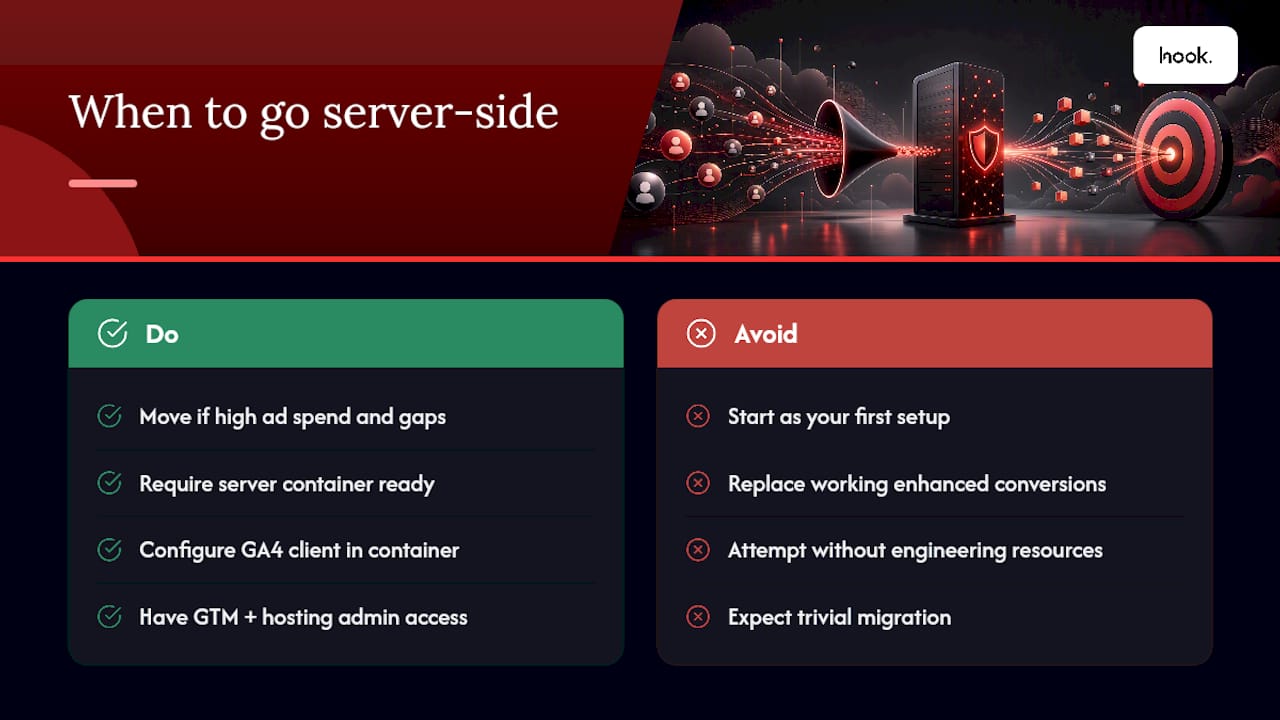
The appeal is real: server-side GTM can improve page speed, since fewer scripts run in the visitor’s browser, and it tends to hold up better against ad blockers and browser restrictions that strip cookie data. The typical flow runs a key event on your site, which triggers a server-hosted Ads Conversion tag, which then sends data to Google Ads directly from your server rather than the browser.
You’ll need three things before attempting it: a server container (hosted on Google Cloud or elsewhere), a GA4 client configured within that container, and admin access to both your GTM account and your hosting environment. That’s a meaningfully bigger lift than a standard web container.
If your existing web-side setup with enhanced conversions is recovering most of your lost data, server-side is a nice-to-have. If you’re running high ad spend and still seeing significant tracking gaps, it becomes worth the engineering time.
Why are your conversions missing, and how do you check?
Google’s own Tag Assistant is the first stop for diagnosing problems: it shows whether your tags fired, whether the Conversion Linker tag is present, and what status your conversion action currently holds.
Most missing-conversion problems trace back to a handful of causes:
- Missing Conversion Linker: without it, GCLID data never gets stored, so conversions silently disappear even though the rest of your tag fires correctly.
- Cross-domain redirects: if a visitor moves from your main site to a separate checkout or booking domain, GCLID can get lost mid-journey unless cross-domain linking is configured.
- Trigger misconfiguration: a trigger set to fire on the wrong page or event will either double-count or never fire at all.
Run a live test conversion, preview your GTM container before publishing, and check the conversion action’s status page rather than guessing. And when the numbers look lower than expected, remember that modelling fills gaps left by users who declined consent, so your reported figure is often a blend of observed and modelled data, not pure raw counts.
Pro Tip: A Conversion Linker tag is one of the most overlooked steps in the entire setup, and its absence is the single most common reason advertisers see conversions under-reported for weeks before anyone notices.
What should you check for privacy and consent compliance?
Enhanced conversions exist partly because cookie-based tracking keeps getting less reliable. Hashed first-party data, like a customer’s email address run through SHA256, gives Google Ads a privacy-safe way to match a conversion to a click even when third-party cookies are blocked.
Consent Mode changes how your tags behave for visitors in the EEA and UK specifically. When a visitor declines cookie consent, Consent Mode adjusts what your tags are allowed to collect, and Google Ads fills the resulting gaps using statistical modelling rather than direct measurement.
- Update your privacy notice to disclose what data enhanced conversions use and why.
- Configure your consent banner so it correctly signals consent status to your tags.
- Follow Google’s hashing rules precisely: lowercase, trimmed, no extra spaces, or your match rates will drop.
- Only ever send the minimum needed, typically email or phone, never additional personal data you don’t require for matching.
What should a busy marketing team check first?
Most teams don’t need a rebuild. They need a short list, done properly, in the right order.
Starter checklist: confirm admin access to Google Ads and your tag setup, pick Google tag or GTM based on your platform mix, agree a naming convention for conversion actions before anyone builds one, and assign a genuine value to each conversion type.
Common fixes applied on client accounts include resolving cross-domain GCLID loss, adding a missing Conversion Linker tag, and enabling enhanced conversions where none had been configured. Small changes, consistently large impact.
Why most conversion tracking advice misses the point
The advice online treats conversion tracking as a one-off technical task: follow the steps, tick the box, move on. That’s the wrong mental model. Tracking degrades. Browsers tighten cookie rules, consent frameworks evolve, a developer redesigns the checkout flow and breaks a trigger nobody’s watching. Treating it as “done” is how accounts quietly lose 20 or 30% of their reported conversions over a year without anyone noticing until the numbers stop making sense.
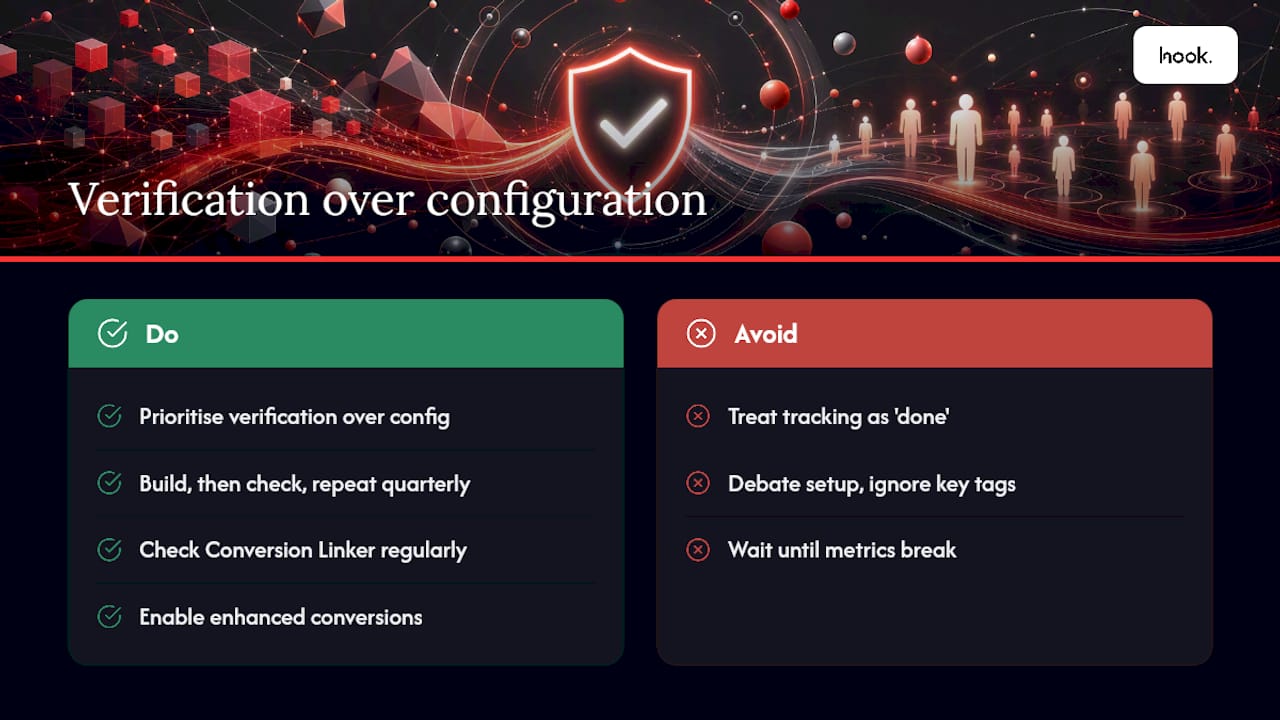
The conventional wisdom also overrates the setup method and underrates the boring bits. Whether you choose Google tag or GTM matters far less than whether Conversion Linker is actually firing and enhanced conversions are actually switched on. Teams spend hours debating architecture and five minutes checking the one tag that most often breaks attribution.
If you take one thing from this, prioritise verification over configuration. Build it, then check it, then check it again next quarter. Conversion tracking isn’t a launch task; it’s a maintenance habit, and the businesses getting the most reliable data are the ones treating it that way.
— Hook
When is it time to bring in help with conversion tracking?
DIY conversion tracking works well for straightforward setups: a single landing page, one form, no cross-domain journey. Once you’re running multiple campaigns with different goals, offline sales cycles, or a checkout flow across two domains, the risk of silent data loss climbs fast, and that’s exactly when getting a second pair of eyes pays for itself.
Professional help can assist with parts teams commonly get wrong first time: setting up conversion actions correctly for each campaign goal, properly enabling enhanced conversions, and building server-side GTM containers when web-side tracking isn’t recovering enough data — West Michigan Small Business Marketing agencies can provide expert support. We also help assign realistic conversion values so Smart Bidding actually optimises towards revenue, not just cheap clicks. If your reported conversions look lower than your sales team’s numbers, that gap is usually fixable within a day of proper diagnosis. Get in touch through Hook Digital’s branding and design services page to talk through where your setup currently stands and what a proper fix would look like.
FAQ
How do you track conversions with Google Ads?
Create a conversion action in Google Ads, then implement it via the Google tag, Google Tag Manager, or a URL/code-based method, and add a Conversion Linker tag if you’re using GTM.
What’s the difference between GA4 and Google Ads conversion tracking?
GA4 measures broader on-site behaviour and events, while Google Ads conversion tracking is built specifically to tie a result back to the ad click that caused it using GCLID; GA4 doesn’t preserve GCLID the way older analytics tools did, so importing GA4 events into Ads needs careful configuration.
How do you change conversion tracking settings in Google Ads?
Go to Goals > Conversions > Summary, select the conversion action, and edit its category, value, count setting, or attribution model without needing to rebuild the underlying tag.
How do you set up conversion tracking from scratch?
Create the conversion action in Google Ads first, copy the Conversion ID and label, then implement either a URL-based snippet, a code-based event tag, or a GTM Ads Conversion tag alongside a Conversion Linker, and finish by enabling enhanced conversions.
Why are my Google Ads conversions showing as unverified?
A new conversion action commonly shows “Unverified” until a real or test conversion fires; this typically resolves within a short window once genuine traffic passes through the tag.
.png)


